


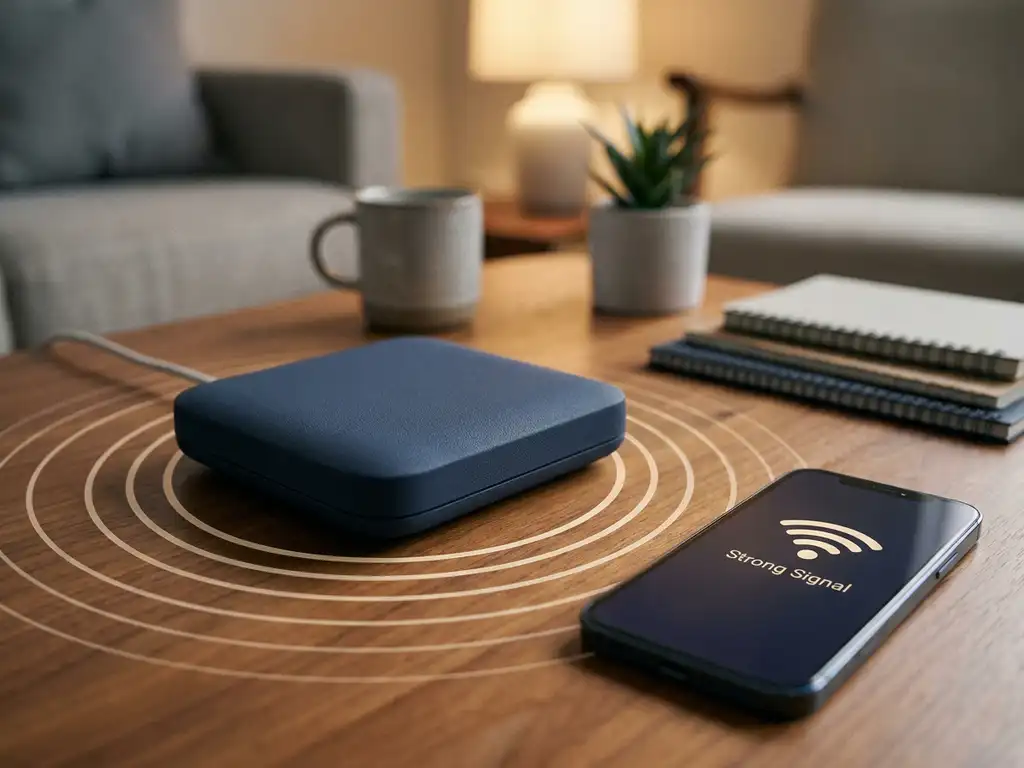
A slow Wi-Fi connection in certain rooms is one of the most common frustrations for home users — and often the cause is a signal strength problem you can diagnose yourself in minutes. Wireless signal strength is measured in dBm (decibel-milliwatts), and free tools on Android, iOS, Windows, and macOS make it straightforward to test your Wi-Fi signal strength at no cost, using your device’s built-in capabilities. This article explains what dBm values mean, which tools to use on each platform, what causes weak signals, and how to improve coverage throughout your home.
What does wireless signal strength mean and why does it matter?
Wireless signal strength tells you how strong the Wi-Fi signal is that your device receives from the router. It is measured in dBm (decibel-milliwatts), where values closer to zero mean a stronger signal. A good signal strength gives you a stable connection, faster download speeds, and fewer dropped connections.
Signal strength directly determines the quality of your internet experience. A weak signal causes web pages to load slowly, video calls to drop, and streaming to be interrupted. By measuring your Wi-Fi signal, you can see how your network performs throughout your home and catch problems early.
One thing that often causes confusion: dBm values are always negative numbers. A signal of -30 dBm is much stronger than -80 dBm — the closer to zero, the better. This scale helps you objectively assess Wi-Fi quality and plan improvements.
Which free apps can you use to measure Wi-Fi signal strength?
Every major platform offers either a built-in method or a free option from its app store — in many cases you do not need to install anything at all. The sections below walk you through each one.
Measuring Wi-Fi signal strength on Android
Android devices give you access to real-time dBm readings through free Wi-Fi analyzer apps available on the Play Store. Follow these steps on most free apps in that category:
- Download a free Wi-Fi signal analyzer app from the Play Store.
- Open the app and connect to your home network.
- Navigate to the signal strength or RSSI screen within the app.
- Walk through each room and note the dBm reading at each location.
The dBm value is usually shown in the network details view or on a live signal graph. Compare your readings against the interpretation table below to understand what each value means for your connection quality.
Measuring Wi-Fi signal strength on iPhone (iOS)
iOS does not show raw dBm values in the standard Settings menu, but you can access them through the built-in AirPort Utility app — no additional download needed. Follow these steps:
- Go to Settings > Privacy & Security > Location Services and enable location access for AirPort Utility.
- Open AirPort Utility and tap Wi-Fi Scan, then tap Start Scan.
- Find your network in the list and read the RSSI value displayed next to it.
RSSI on iOS is the direct equivalent of dBm. A value of -50 RSSI means the same as -50 dBm. Use the signal interpretation table below to understand what your result means in practice.
How to check Wi-Fi signal strength on Windows 11
No additional software is needed on Windows 11 — the operating system includes a built-in command that returns detailed signal information. Follow these steps:
- Open the Start menu, search for Command Prompt, and select Run as administrator.
- Type
netsh wlan show interfacesand press Enter. - Find the Signal field in the output — this shows your current signal quality as a percentage.
- Note your current location, then repeat the measurement in different rooms to map weak spots across your home.
The percentage shown maps roughly to dBm: 100% corresponds to approximately -50 dBm or better, while 50% corresponds to around -75 dBm. For a precise dBm figure, a dedicated signal analyzer app gives a more accurate reading than the percentage alone.
How to check Wi-Fi signal strength on macOS
macOS has two built-in methods — no extra software required.
The quickest option: hold the Option key and click the Wi-Fi icon in the menu bar. A detailed panel appears showing your current RSSI value (signal strength in dBm), noise level, channel, and connection mode. The reading updates in real time as you move through your home.
For a fuller picture, use the built-in Wireless Diagnostics tool. Hold the Option key, click the Wi-Fi icon, and select Open Wireless Diagnostics. Then go to Window > Scan to see all nearby networks with their signal levels, channels, and band information. This is especially useful for spotting channel congestion alongside your own signal strength.
In both cases, the RSSI value shown is your dBm reading. Refer to the signal interpretation section below to understand what your result means for everyday use.
Ready for the next step?
Explore our solutions or get in touch directly with one of our experts.
How do you interpret your signal strength reading?
Once you have a dBm number, the table below tells you what it means in practice. It maps each range to a signal quality level, typical use cases, and what you are likely to experience day to day.
| dBm Range | Signal Quality | Typical Use Cases | What You May Experience |
|---|---|---|---|
| -30 to -50 dBm | Excellent | Gaming, 4K streaming, video calls | Maximum speeds, no interruptions |
| -50 to -60 dBm | Good | HD streaming, browsing, remote work | Reliable performance across all tasks |
| -60 to -70 dBm | Fair | Standard browsing, SD video | Occasional slowdowns with large files |
| -70 to -80 dBm | Weak | Email, basic browsing | Stuttering video, slow page loads |
| Below -80 dBm | Very weak | Minimal use only | Frequent connection drops |
These ranges give you an immediate sense of whether the connection in a given room is good enough for what you want to do. For gaming and video calls, aim for -65 dBm or better. For basic browsing and email, -75 dBm is generally workable, though you may notice delays with more demanding tasks.
What are the most common causes of a weak Wi-Fi signal at home?
Distance from the router is the biggest factor. Every obstacle between your device and the router weakens the signal — with thick walls, metal objects, and multiple floors having the greatest impact. Concrete walls and metal pipes block Wi-Fi signals far more than wooden partitions do.
Interference from other devices is another frequent culprit. Microwave ovens, baby monitors, and Bluetooth devices all share the same 2.4 GHz frequency used by many Wi-Fi networks. Neighboring networks on the same channel add to the problem, especially in apartment buildings or densely populated areas.
Outdated hardware also limits performance. Older routers may only support earlier Wi-Fi standards with lower speeds and less effective signal distribution. Devices with older Wi-Fi chips cannot take full advantage of what a modern router offers.
Less obvious factors that affect your measured signal
Beyond physical obstacles and interference, several less visible factors influence the dBm reading your device reports. Understanding them helps you interpret your measurements more accurately.
- Wi-Fi standard limitations: Older devices built around the 802.11n standard cannot benefit from the more efficient signal distribution offered by Wi-Fi 5 (802.11ac) or Wi-Fi 6 (802.11ax). Wi-Fi 6 handles dense environments more effectively through improved spectrum management, which can translate to better measured signal quality even at greater distances.
- Router firmware and configuration: Outdated router firmware can restrict transmit power and limit how well the router steers devices between frequency bands. Keeping firmware up to date ensures the router performs as intended.
- Network congestion: Too many devices on a single band degrades per-device performance, even when the physical signal is strong. If your dBm reading looks reasonable but performance is still poor, congestion may be the cause.
- Device hardware: The Wi-Fi chip and antenna inside your device directly affect the dBm value it reports. Two devices in the same room can show meaningfully different readings — this is normal and reflects hardware differences, not a problem with your router.
How can you improve a weak wireless signal in different rooms?
Optimal router placement for full-home coverage
Router placement is the most effective — and cheapest — fix for poor coverage. Place the router centrally, elevated, and away from metal objects or thick walls. Positioning it at ceiling height, where possible, improves omnidirectional spread and reduces the number of obstacles the signal must pass through. Avoid closets, basements, and corners of the house, where the signal cannot reach all rooms effectively.
Wi-Fi extenders vs. mesh systems: which is right for your home?
When router placement alone is not enough, extenders and mesh systems both extend coverage — but they work differently and suit different situations.
- Extender: Lower upfront cost, but halves available bandwidth on the repeated band because it retransmits the signal on the same channel. Better suited to smaller homes with one or two problem areas.
- Mesh system: Uses multiple access points that communicate on a dedicated backhaul, maintaining full bandwidth across nodes and providing seamless roaming as you move between rooms. A stronger choice for homes over 100 m² or with multiple floors.
For organizations or larger residential environments with more demanding requirements, HPE Aruba offers enterprise-grade mesh solutions that provide the reliability and management capabilities of a professional network.
Adjusting frequency bands and channels to reduce interference
Switching Wi-Fi channels and frequency bands can meaningfully reduce interference from neighboring networks. Use the 5 GHz band for devices close to the router and 2.4 GHz for greater distances. Modern routers can select the best channel automatically, but manual adjustment via the router’s admin interface can yield better results in congested environments. Wi-Fi 6 routers handle channel congestion more efficiently through OFDMA technology, which allows multiple devices to share a channel simultaneously without the performance loss seen on older standards.
Is your slow internet caused by a weak Wi-Fi signal or your provider?
Before investing in new hardware, it is worth confirming whether your connectivity problem originates inside your home network or further upstream. Test your Wi-Fi signal strength using the tools described above, then follow this diagnostic sequence to pinpoint the source.
- Measure signal strength at the router location. Standing next to your router, check your signal using any of the methods above. At this distance, you should see a reading between -30 and -50 dBm. If the signal is already weak here, the router itself may be the issue.
- Run a speed test over a wired Ethernet connection. Connect a laptop or desktop directly to the router using an Ethernet cable and run a speed test. Compare the result to the speed included in your internet subscription.
- Compare wired and wireless results. If your wired speed matches your subscribed plan but Wi-Fi performance is poor, the problem is signal-related and can be addressed with the improvements described in this article.
- If wired speed is also low, the issue lies elsewhere. A slow wired connection points to a problem with your internet provider, your modem, or the connection between them — not your Wi-Fi network.
A good dBm reading does not automatically guarantee fast internet. Other variables — including network congestion at the provider level, ISP throttling during peak hours, or outdated modem firmware — can limit your speeds even when your wireless signal is strong. Ruling these out systematically saves time and avoids unnecessary hardware purchases.
If your diagnostic results point to a problem that goes beyond what home-network adjustments can solve, the section below explains how professional network expertise can help.
How we help with wireless network issues
We provide professional wireless network solutions for organizations with complex connectivity challenges that go beyond standard home networks. Our expertise covers enterprise Wi-Fi systems, private wireless networks, and IoT connectivity for business-critical applications.
Our solutions include:
- Private LTE/5G networks for full control over wireless connectivity
- Enterprise Wi-Fi systems from HPE Aruba and Cisco for large buildings and campuses
- IoT connectivity and M2M communication for automated processes
- Vendor-independent advice for optimal technology choices
- End-to-end support from design to management
Whether you are dealing with unreliable connections between locations, wireless coverage challenges in complex environments, or connecting legacy equipment, we translate your business needs into practical network solutions. Contact us for a consultation about your specific connectivity challenges and discover how our managed services can support your organization.
Frequently Asked Questions
How often should I check the Wi-Fi signal strength in my home?
It is advisable to check the signal strength monthly, especially after moving furniture or adding new devices. When problems arise, such as slow internet or dropped connections, an immediate measurement is necessary to identify the cause.
Is there a free app to measure Wi-Fi signal strength on my phone?
Both Android and iOS offer free options. On Android, a free Wi-Fi analyzer app from the Play Store shows real-time dBm readings and channel information without any cost. On iPhone, enabling Wi-Fi scanning in the AirPort Utility app provides RSSI values — the iOS equivalent of dBm — without any additional download. The dBm or RSSI value shown in either app maps directly to the quality ranges explained in the signal interpretation section of this article.
Can I improve signal strength by adjusting only the router settings?
Yes, several settings can improve the signal without additional hardware. Change the Wi-Fi channel to a less congested one (1, 6, or 11 for 2.4 GHz), increase the transmit power in the router settings, and switch to the 5 GHz band for devices close to the router.
Why does the measured signal strength differ between devices at the same location?
Different devices have different Wi-Fi chips and antennas, resulting in varying signal strengths. Older devices often receive weaker signals than newer ones. The orientation and materials of the device also affect signal strength.
Is a Wi-Fi extender always the best solution for weak signals?
Not always. Extenders cut bandwidth in half because they retransmit the signal on the same channel. For smaller homes, repositioning the router is more effective, while mesh systems deliver better performance than traditional extenders in larger homes.
Which factors affect signal strength the most in modern homes?
Modern building materials such as reinforced concrete, metal beams, and energy-efficient windows with metallic coatings block Wi-Fi signals more effectively than traditional materials. Underfloor heating with metal pipes and smart home devices can also cause interference.
How do I know whether my internet problems are caused by a weak Wi-Fi signal or a slow internet connection?
First test the signal strength with an app — if values are above -60 dBm, the problem likely lies with your internet provider. Then run a speed test directly next to the router via an Ethernet cable and compare the results with Wi-Fi speeds at different locations.
Ready for the next step?
Explore our solutions or get in touch directly with one of our experts.